
English Classes for Companies and Employees | How Speakingathome Works
 speakingathome
At Speakingathome, we provide 1-on-1 online English lessons (one teacher per student), tailored for both corporate teams and individual learners. This personalised format allows us to adapt every session to each student's real-world needs, professional goals, and current level, ensuring a faster and more effective path to English fluency.
We also know how busy work life can be, so we offer the flexibility your employees need. For every session, they have the freedom to choose the date, time, and even the teacher that fits their schedule best. If you ever have questions about how our classes work, you can always reach us via email, WhatsApp, or chat.
In this post, we’ll walk you through how to get the most out of our business portal. With our corporate web tools, you can easily manage course sizes, track employee progress and engagement, and stay on top of all your invoicing in one place.
How to Register a Business Account
To get started, your company needs to register and create a Business Account with Speakingathome. You can do this through the following link: https://www.speakingathome.com/register
We recommend using the email address of the person who will be managing the employee courses. Ideally, use a shared or generic email address that different team members can access over time—for example: hr@company.com.
Once your account is created, please reach out to us via email, chat, or WhatsApp. We need to manually verify and convert your registration into a full Business Account to give you access to our corporate tools.
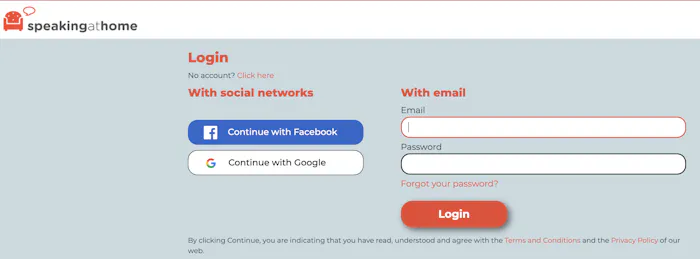
Set Up Your Business Account
Navigating Your Business Account
Once your Business Account is created and you log in, you will see the following menu on the left side of your dashboard:
- My Classes
- Transfer
- Reports
- Lessons
- Purchase
- My Account
- Billing
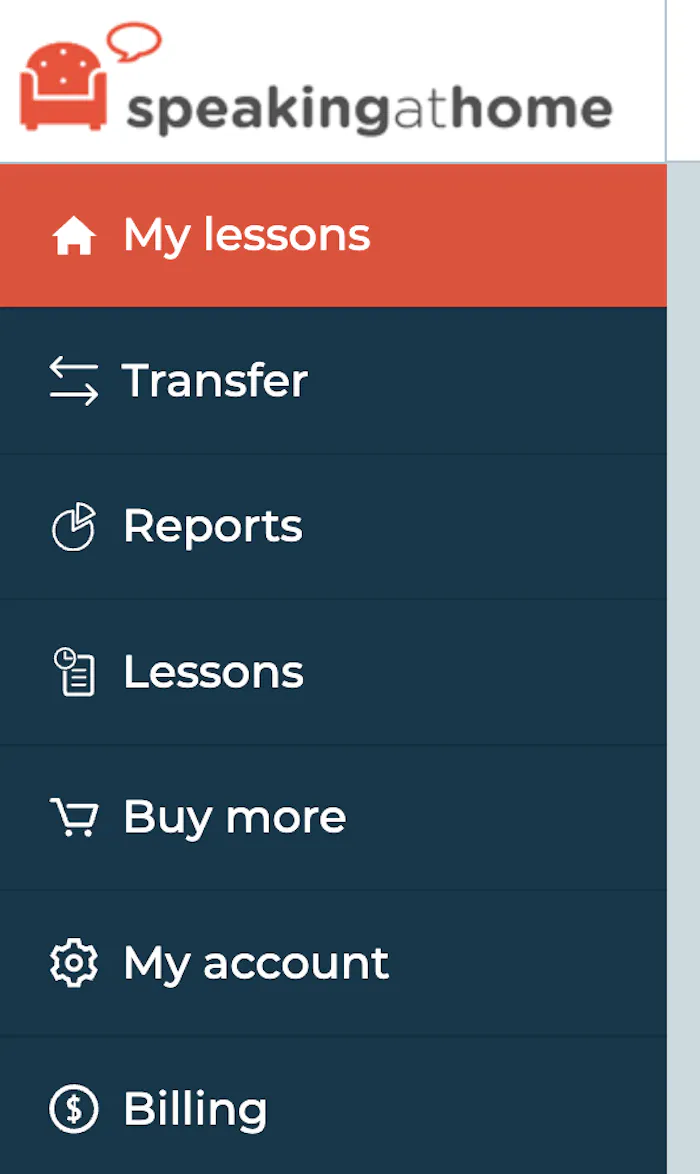
Speakingathome Business Dashboard
Menu Option: My Classes
On this page, you will find a summary of the status of all the English lessons your company has purchased. This includes both 30-minute and 1-hour sessions.
- Available Lessons: The total number of lesson credits your company currently has in its balance, ready to be assigned to any employee.
- Assigned Lessons: The total number of lessons that have been allocated to specific employees but have not yet been booked with a teacher.
- Total Purchased: The cumulative total of all lessons the company has ever purchased.
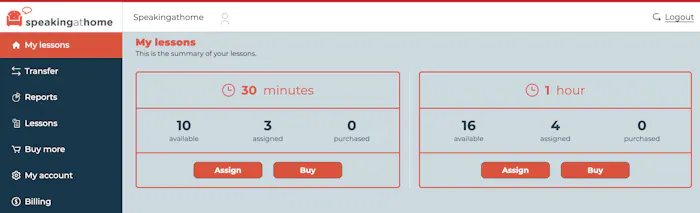
Menu Option "My Classes"
Menu Option "Transfer"
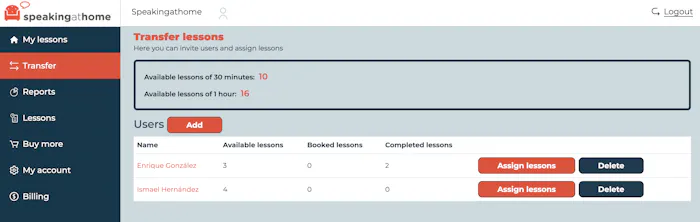
Menu Option "Transfer"
On this page, you will find a table displaying all the students currently managed under your Business Account.
To add new members, click the "Add" button. This allows you to send an invitation to an employee. Once they complete their registration through that link, their account will be linked to your company’s profile, allowing you to manage their lessons and progress.
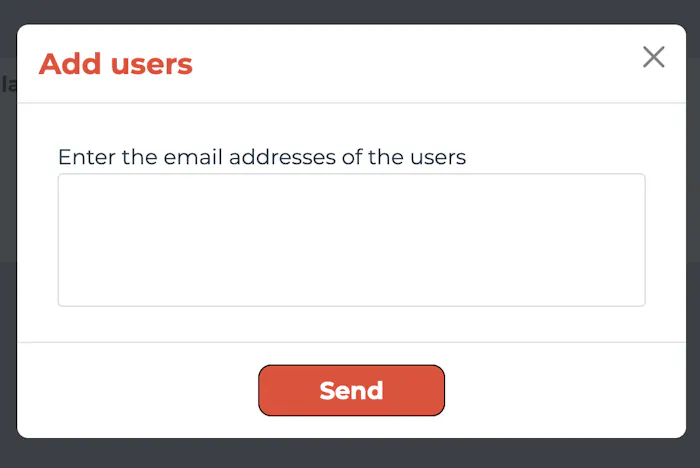
Add Invite Employees
- "Assign Lessons" Button: Use this button to manage each employee's specific balance. By clicking it, a dialogue box will appear where you can adjust the total number of lessons assigned to that student, either by adding more sessions or removing them.
- "Delete" Button: This button removes the company's management control over that specific account. It essentially unlinks the employee from the Business Account.
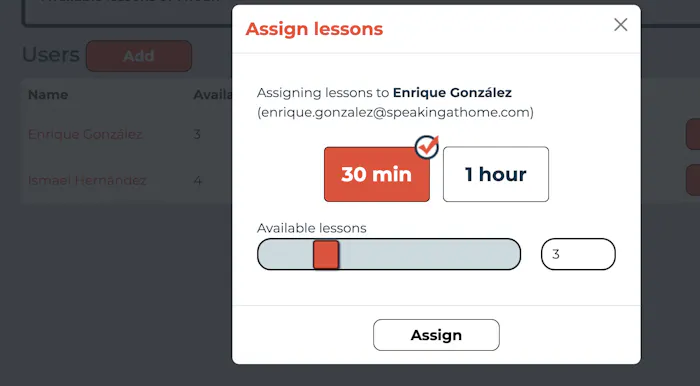
"Assign Lessons" Dialogue
"Reports" Menu Option (Part I)
The Reports page provides valuable insights into your employees' engagement and activity with their English lessons. You can easily track all the data through various interactive charts.
Lesson Distribution Chart
This chart gives you a bird's-eye view of your company's lesson inventory:
- Pending Transfer: These are lessons remaining in the company’s general balance that have not yet been assigned to any specific employee.
- Pending Booking: Lessons that have already been transferred to employees but are still waiting for the student to select a teacher, date, and time.
- Completed by Students: Lessons that have already been taken and enjoyed by your team.
- Usage Breakdown Chart
- This chart focuses specifically on the status of lessons that have left the company's general pool:
- Booked: Sessions that are currently scheduled to take place soon.
- Completed: Lessons that have successfully been delivered.
- Student No-Show: This identifies lessons that could not be held because an employee did not attend the scheduled session.
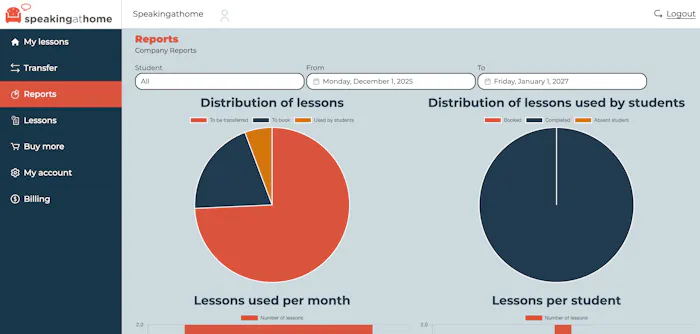
"Reports" Menu Option (Part I)
"Reports" Menu Option (Part II)
Further down, the Reports tab offers two additional charts to help you track long-term progress.
- Monthly Usage: This chart displays the total number of lessons your employees have completed over the past few months, allowing you to monitor trends in activity.
- Lessons per Student: This graph shows the specific number of lessons each employee has either already completed or currently has scheduled.
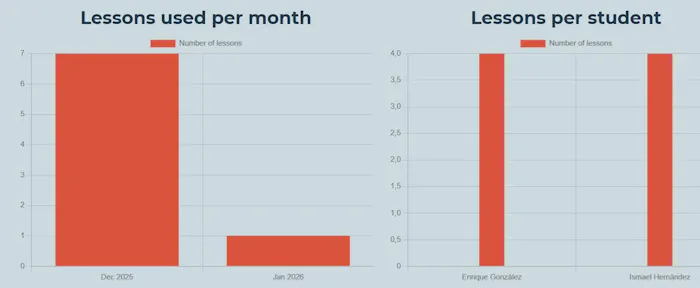
"Reports" Menu Option (Part II)
The "Lessons" tab features two key sections designed to give you full oversight of your team’s activity:
- Lessons (Default View): This section displays the complete Lesson History for all employees. It includes specific details such as the employee's name, the assigned teacher, the date and duration of the session, and the current status (e.g., Booked or Completed).
- Transfers Sub-menu: Here, you can track the movement of lesson credits. This table displays all transfers (adding lessons to an employee) and withdrawals (reclaiming lessons from an employee) to ensure your balance is always accounted for.
Additionally, this tab allows you to filter data for your entire team or a specific individual within a custom date range. Once you have the information you need—including teacher details, dates, and lesson status—you can download a PDF report of the data directly from this menu.
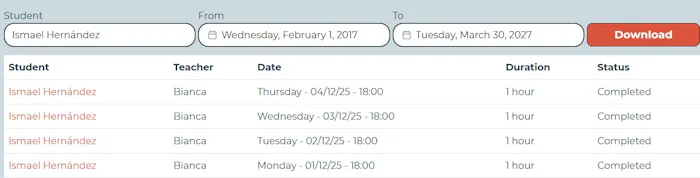
Lessons Tab
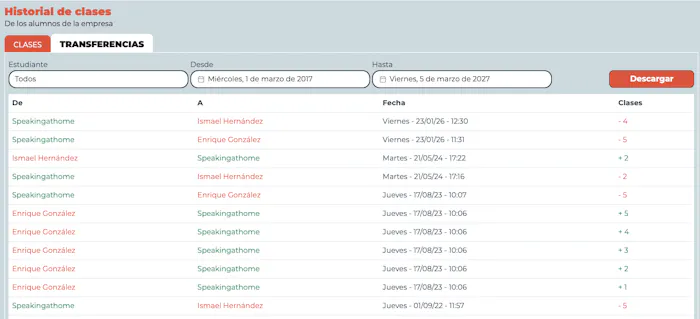
Transfers Tab
From the "Purchase" tab, you can select new lesson packages for your team.
The more lessons you purchase, the better the price per lesson becomes. You can choose between 30-minute or 60-minute lesson bundles depending on your needs.
Clicking the "Buy" button on your chosen package will open the payment gateway. Please remember that you can pay via Credit Card, Bank Transfer, or PayPal.
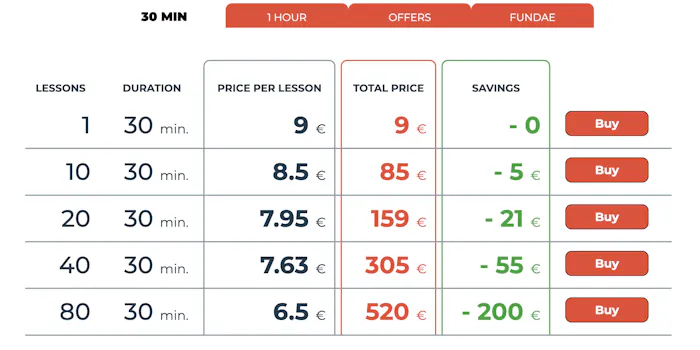
Purchase
The "My Account" tab contains all your company’s registration details. If any of this information changes, you can update the fields and save the changes instantly by clicking the "Save" button.
Further down the page, below your corporate profile, you will find the Billing History of all previously purchased bundles. This section provides specific details for each transaction, including the number of lessons purchased, the date of purchase, and the expiration date.
You will also find information regarding inactive bundles—those that no longer have available credits. Please keep in mind that all lesson bundles expire one year after the date of purchase.
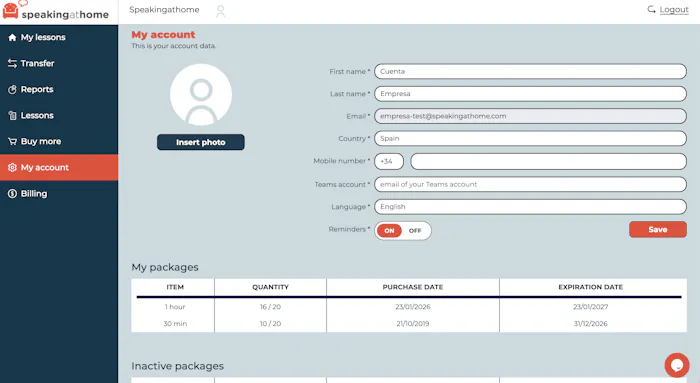
My Account
Finally, the "Billing" tab allows you to create your own invoices for the lesson bundles purchased for your company.
You will need to enter your company's tax information; once entered, simply click the "Generate Invoice" button. You can also use the "Edit" button at any time to update your company's tax details.
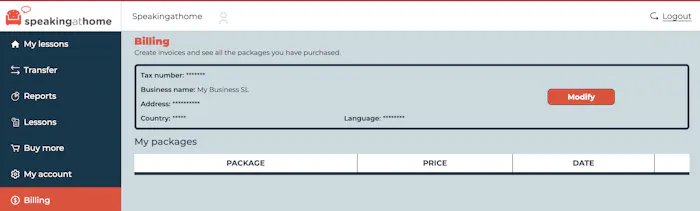
Billing
Now you are all set to configure and manage your Company Account, so your employees can begin their training at Speakingathome.
And, of course, if you have any questions, you can always contact us directly via chat, and we will resolve any inquiries you may have.